The Claude Agent Step runs Claude Code as a step in your deployment process or runbook. This page walks through adding the Run Claude Agent step to a process, running it, and reading what the agent did, then gives you two worked patterns to start from: a failure investigation and a pre-promotion smoke test. The step is an alpha release; before you build on it, read the limitations.
Add a Run Claude Agent step
Follow these steps to add the step to a deployment process or runbook and configure the prompt, credentials, and security controls it runs with.
Before you begin, you’ll need:
- An Anthropic API key, stored in Octopus as a sensitive project or library variable (for example
anthropic-api-key). You reference it from the step as#{anthropic-api-key}. Storing it as a sensitive variable keeps it out of the task log and lets you scope it like any other Octopus secret. - The Claude Code CLI on the
PATHof whatever runs the step: a worker, a deployment target, or the Octopus Server if you run the step on the server. The step launches theclaudeexecutable as a child process. - If you pick the Sandbox runtime sandbox mode: the
srtexecutable from Anthropic’s sandbox-runtime (version 0.0.55 or later) on thePATH. The step checks the version and fails if it’s missing or too old.
Octopus does not install, download, or bootstrap the Claude Code CLI for you. If claude isn’t on the PATH, the step fails when it tries to start the process. Install Claude Code on your worker or target, or bake it into your worker image, before you run the step.
To add and configure the step:
- Open your deployment process or runbook and select Add step.
- Search for
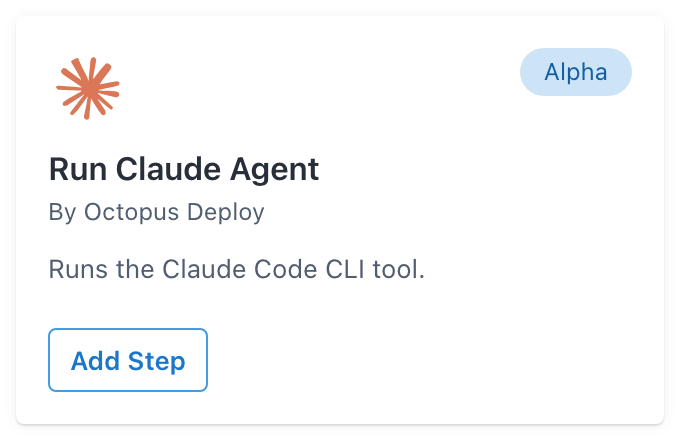
claudeand choose Run Claude Agent from the step library.
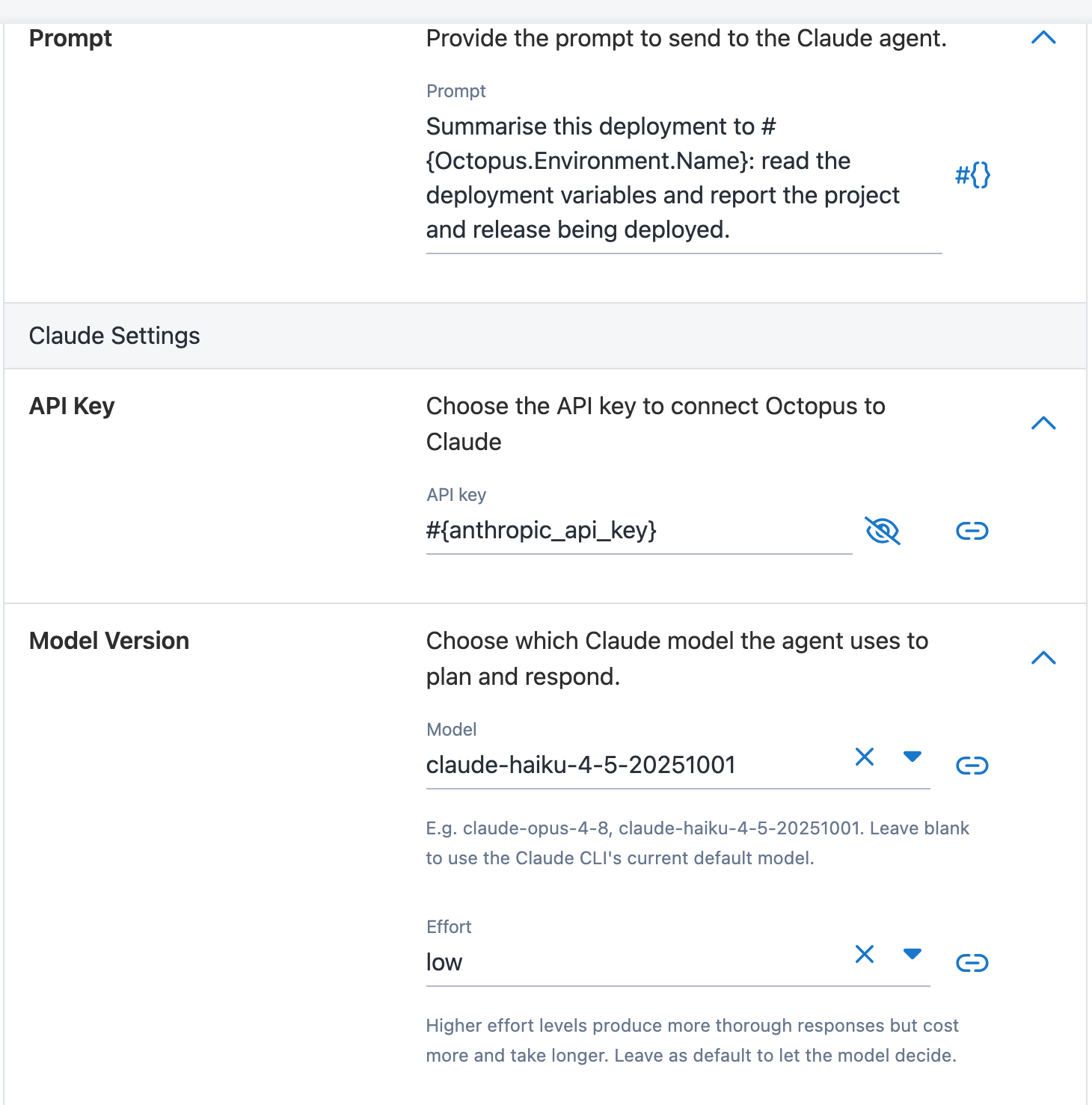
- In Prompt, describe the task in plain language, the way you would prompt Claude Code. The prompt can use Octopus variables (for example
#{Octopus.Environment.Name}), which are substituted before the agent runs. Be specific about what you want the agent to do and what “success” looks like. - In Claude Settings, set API Key to a reference to your sensitive variable, for example
#{anthropic-api-key}. - Optionally, set Model Version to a model such as
claude-opus-4-8orclaude-haiku-4-5, or leave it blank to use the Claude Code CLI’s current default. The Effort setting trades thoroughness against cost and latency; leave it blank to use the default.
-
In Security, select a Sandboxing mode. You must pick one of the three values to save the step:
- Bash sandbox uses Claude Code’s built-in sandbox. It confines the agent’s
Bashcommands, but file operations and hooks still run on the host. - Sandbox runtime runs the whole agent process inside Anthropic’s
sandbox-runtime, for stronger, whole-process isolation. - None applies no sandboxing. The agent runs with the same permissions as the account running the step (the Tentacle/Kubernetes Agent service account). We don’t recommend it unless you have your own isolation around the worker.
For a first run on a Linux worker, Sandbox runtime is the safest starting point. Each mode and how to configure it is covered in Security & Compliance.
- Bash sandbox uses Claude Code’s built-in sandbox. It confines the agent’s
The Bash sandbox and Sandbox runtime modes are supported on Linux (and WSL2) workers in this alpha. They aren’t available on Windows workers. If you’re evaluating the step on a Windows worker, use None and rely on your own isolation while you try it out.
-
Select a Permission Mode. For your first run, select dontAsk mode. The step runs non-interactively, with no way to approve an action mid-run, so
dontAskis the standard choice: the agent may use any tool you allow and is denied everything else. The other option, Auto mode (a classifier model that judges each action instead of relying only on the allowlist), is covered in Security & Compliance. -
In Tool Permissions, list the tools the agent needs, one per line. For example:
Read
Glob
Bash(pwd)
Bash(ls *)
Keep the list tight and add to it as you learn what the agent needs. A denied tool call fails the step, so a list that’s too narrow is safer than one that’s too broad. The full tool syntax is covered in Security & Compliance.
-
Optionally, under Agent Capabilities, add Skills (reusable instructions) or MCP servers (extra tools). See Extending the Claude Agent Step.
-
Under Additional Configuration Options, set a Turn Limit to cap how many turns the agent can take before the step stops. One turn is a single request/response cycle with the model. The default is 10.
-
Optionally, set a Maximum Budget as a spend cap in USD. Leave it blank for no limit.
-
Leave Prompt Injection Check switched on. Before the agent runs, Octopus screens the prompt, deployment variables, MCP configuration, and skills with a fast model (
claude-haiku-4-5by default) and, by default, blocks the step if it detects an injection attempt. It costs a little time and a few tokens per run. -
Save the step.
The Run Claude Agent step appears in your deployment process or runbook, ready to run.
Run the step
A Run Claude Agent step runs like any other step. Run the process that contains it, then watch what the agent does in the task log.
To run the step and watch its output:
- Create a release and deploy it (or run the runbook), as you would for any other step.
- Open the task and expand the step in the task log. While the step runs, the agent streams its output in real time: at the default log level you see the agent’s narration and its final answer.
- To also see the agent’s thinking, each tool call, and the exact command Octopus ran, switch the log to verbose (or download the raw log).
A run looks roughly like this (trimmed):
Running prompt-injection check against the execution context using model 'claude-haiku-4-5'.
Prompt-injection check passed: no injection detected in the execution context.
I'll help you investigate the deployment state. Let me read the deployment variables and check the working directory.
## Deployment Investigation Complete
**Deployment Summary:**
- **Project:** ClaudeIsCool
- **Environment:** Development
- **Task:** RunbookRun (ServerTasks-975)
**Working Directory Status:**
- **Writability:** CONFIRMED - Successfully created findings.txt
Claude Code usage — Duration: 15527 ms, Turns: 6
Claude Code tokens — Input: 30, Output: 1476, Cache read: 55032, Cache creation: 34098
Claude Code invocation complete.
Collecting artifacts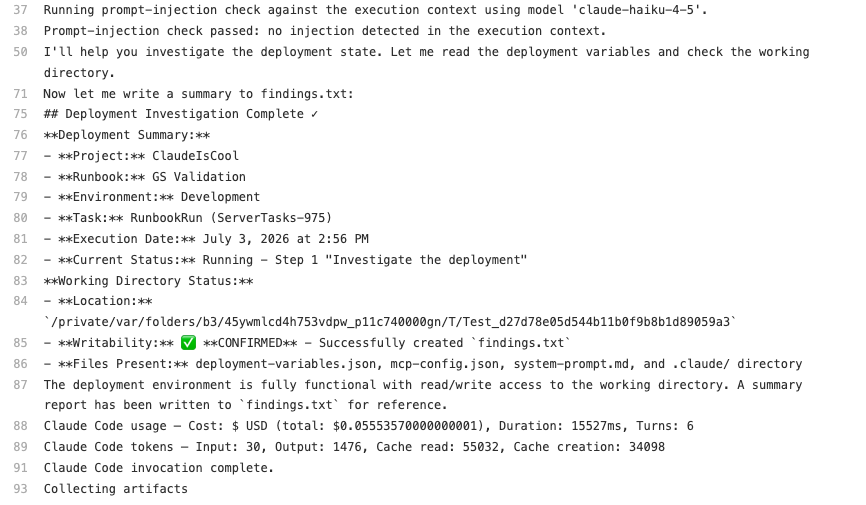
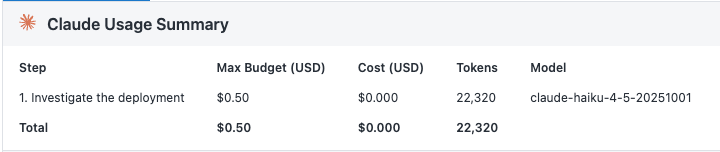
When the task finishes, the step’s log ends with its usage lines and Claude Code invocation complete., and the task page shows a Claude Usage Summary panel.
Run outputs
Every completed run leaves the following outputs on the task page.
| Output | Where it appears | What it contains |
|---|---|---|
| Task log | The step’s section of the task log | The agent’s streamed narration and final answer. The verbose level adds its thinking and each tool call. |
| Claude Usage Summary | A panel on the task page | Each Claude step with its model, token count, cost, and any budget cap, plus a total. Use it to keep an eye on what a run costs. |
| Artifacts | The task’s artifacts | Files the agent attached using the built-in octopus-artifacts skill, ready to download. See Built-in skills. |
| Transcript | Stored on the Octopus Server, gated behind a dedicated permission | The full, verbose session, recorded for auditing. See Security & Compliance for who can read it and how. |
Investigate a failed deployment
When a deployment fails, the fastest first responder is one that’s already there. Add an agent step that runs only when an earlier step fails, and it attaches a first-pass diagnosis to the failed task, while the deployment is still in its failed state, instead of waiting for someone to start digging.
To add an automatic failure investigation to a deployment process:
-
Add a Run Claude Agent step to your deployment process (see Add a Run Claude Agent step).
-
Set the step’s run condition to Only if the previous step failed.
-
Set the Prompt to:
A previous step in this deployment has failed. Investigate the cause. Read ./deployment-variables.json to learn which project, environment, and release was being deployed. Then inspect the deployed infrastructure to work out why it failed: check whether the service is healthy, read the most recent application and container logs, and check the status of the pods or processes that were meant to be running. Report the single most likely root cause and the specific evidence you found for it. Do not attempt to fix anything. -
Set Permission Mode to dontAsk mode.
-
In Tool Permissions, allow only the read-only commands your investigation needs, for example
Read,Glob,Grep,Bash(cat *),Bash(kubectl get *),Bash(kubectl describe *),Bash(kubectl logs *), andBash(curl *). -
Select Sandbox runtime as the sandbox mode on a Linux worker (or None while evaluating on Windows or macOS).
Keep the allowlist to read-only inspection. The prompt tells the agent not to change anything, but the allowlist is what enforces it: with only read and query commands allowed, an agent that decides to “fix” the problem is denied the tool it reaches for, and the step fails rather than making the outage worse. Match the list to how your infrastructure is inspected. For a virtual machine you might allow Bash(systemctl status *) and Bash(journalctl *) in place of the kubectl commands above; whatever you add, keep it read-only.
Two things make this work. First, Octopus writes the deployment’s non-sensitive variables to a deployment-variables.json file in the agent’s working directory (sensitive variables are filtered out), and the built-in octopus-deployment-context skill tells the agent to read it, so the agent knows what was being deployed without you spelling it out. Second, because diagnosing the failure means reaching the deployed service, the agent can only see what the worker or target it runs on can reach. Run this step where the deployment ran, and scope that worker’s access deliberately; this is the host-interacting pattern covered under Security & Compliance.
Because the step runs only on failure, the deployment still ends in a failed state, which is what you want: the agent explains the failure, it doesn’t paper over it. Its summary appears in the task log next to the step that failed.
Smoke-test a service before promotion
Before promoting a release, you want an agent to check that the deployed service is healthy, and to fail the step if it isn’t so the promotion stops. By default an agent run always succeeds when the agent finishes normally, so the agent has to explicitly signal failure; the built-in octopus-fail-deployment skill handles this when your prompt states a failure condition.
To add a smoke test to a deployment process:
-
Add a Run Claude Agent step after the steps that deploy the service.
-
Set the Prompt to:
Smoke-test the service that was just deployed. Send a request to its health endpoint and check for an HTTP 200 response. If it does not return 200 after a couple of retries, fail the deployment with a short reason describing what you saw. -
Set Permission Mode to dontAsk mode.
-
In Tool Permissions, allow
Bash(curl *), plus any other command your check needs. -
Select Sandbox runtime as the sandbox mode on a Linux worker.
If the health check doesn’t pass, the agent emits the failure tag from the octopus-fail-deployment skill in its final message, and Octopus fails the step and surfaces the agent’s reason in the task log, stopping the promotion. You don’t configure anything extra; stating the failure condition in the prompt is enough. See Built-in skills for how the skill works.
This is a genuinely useful pattern, but be aware of its limits. Failure signaling is best-effort: it depends on the agent correctly deciding the condition was met and emitting a complete tag. An agent that gives up, or misjudges the result, can still finish “successfully” and let the promotion through. Treat the agent’s verdict as a helpful check, not a hard gate, and pair it with deterministic checks where the outcome matters. See Limitations.
Related links
- How the Claude Agent Step works
- Claude Agent Step security and compliance
- Extending the Claude Agent Step
- Step run conditions
Help us continuously improve
Please let us know if you have any feedback about this page.
Page updated on Tuesday, July 7, 2026